
How Can We Help You Today?
Choose an option below for printer setup and troubleshooting assistance.
New Printer Setup
New printer in the box? Go from unboxed to first print without the hassle.
Printer Shows Offline
Printer showing offline again? Get it back online in minutes — for good.
Install Printer Drivers
Wrong or outdated drivers? Get the exact match for your model installed.
WiFi Connection Drops
Tired of your printer vanishing from WiFi? Lock in a connection that lasts.
Error Codes / Not Detected
Flashing lights or cryptic errors? Get a real diagnosis, not guesswork.
Scanner Not Working?
Blank scans or streaky pages? Bring back crisp, clean prints today.
Need more help? Connect with our live chat support team for quick assistance.
Printer Setup & Troubleshooting — Get Back to Printing Fast
Whether you just unboxed a brand-new printer or you’re staring at a “printer offline” message for the third time this week, the goal is the same: clean, reliable prints without the guesswork. The guides below walk you through the most common printer problems step by step, so you can fix the issue yourself in minutes — or know exactly what to ask for if you need a hand.
Pick the card above that matches your situation, or read on for a deeper breakdown of each issue, what causes it, and how it gets resolved.

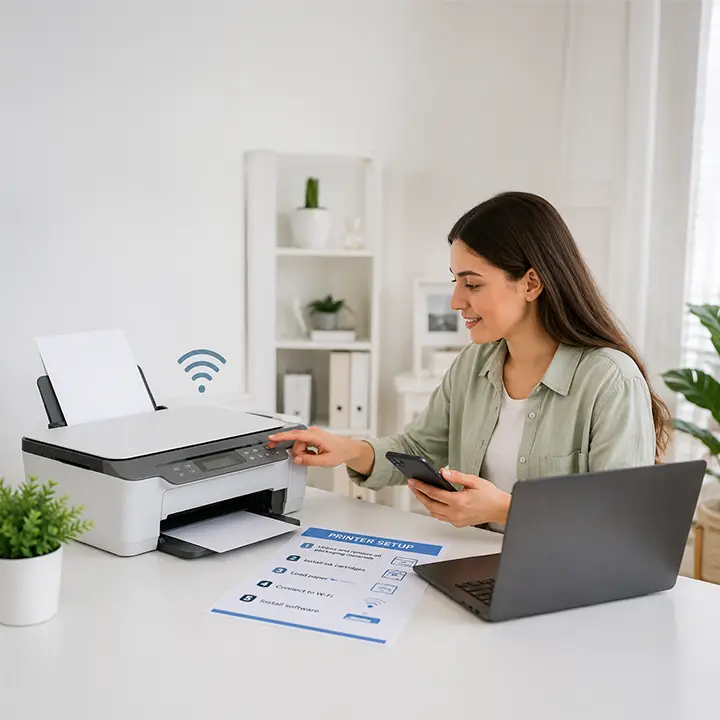
New Printer Setup — From Box to First Print
A fresh printer should be printing within 10–15 minutes, but skipped steps are where most setups stall. A proper setup covers removing all the shipping tape and packing inserts, installing the ink or toner correctly, loading paper, connecting the printer to your Wi-Fi network or computer, and installing the matching software so your devices actually recognize it.
Common setup snags we solve:
- Printer won’t connect to Wi-Fi during initial setup
- Computer or phone can’t find the new printer
- Test page prints blank or streaky out of the box
- Mobile printing (AirPrint, Mopria, or the brand app) won’t link
If you’re setting up for the first time, start with Start Printer Setup and follow the prompts for your exact model.
Printer Shows Offline — Get It Back Online for Good
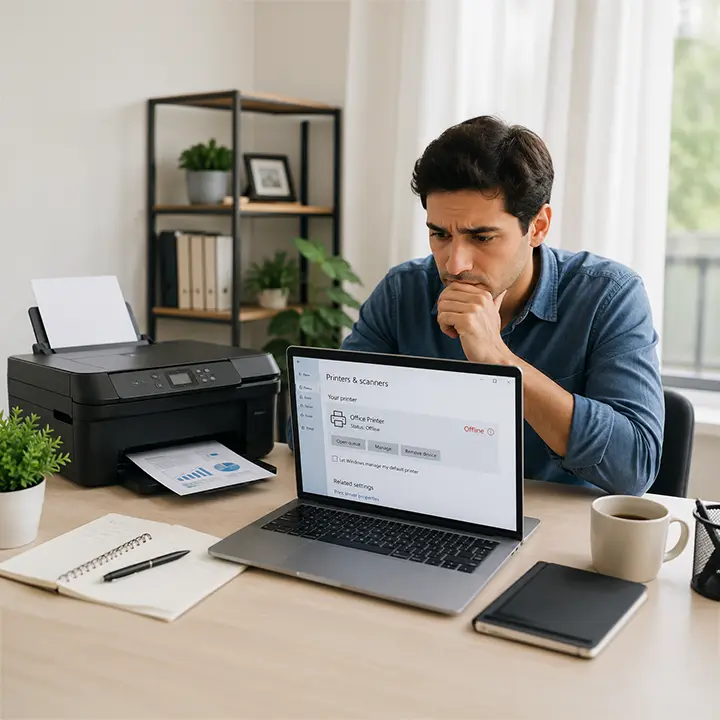
An “offline” status almost never means the printer is broken. It usually means your computer has lost the path to reach it — a changed IP address, a sleeping print spooler, a router that handed out a new connection, or a driver that quietly dropped the link.
Why printers go offline:
- The printer’s IP address changed after a router restart
- The print spooler service stalled or queued a stuck job
- The printer switched between USB and Wi-Fi
- A pending Windows or macOS update reset the connection
Clearing the queue, restarting the spooler, and re-establishing the connection usually brings it back. For a lasting fix, assigning a static IP keeps the printer at the same address so it stops disappearing. Choose Fix Offline Printer to walk through it.
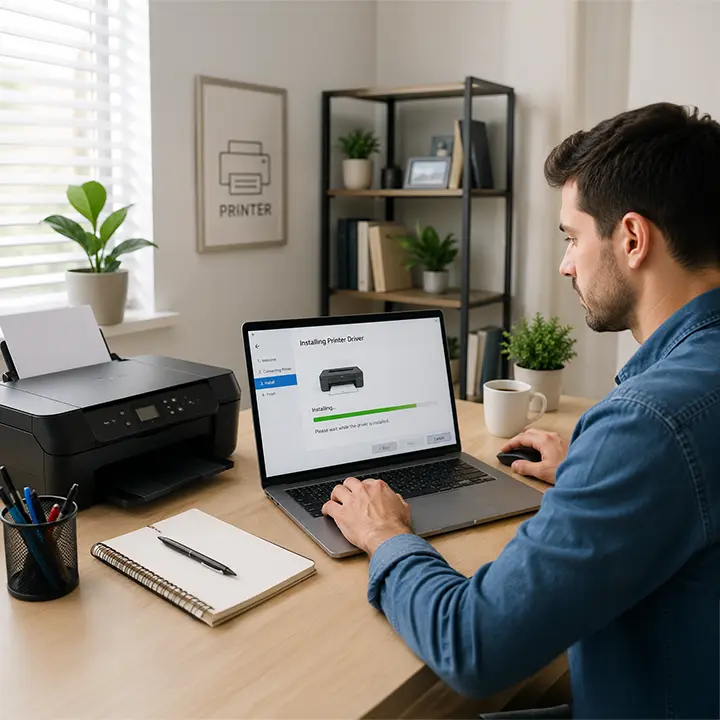
Install the Right Printer Drivers
A driver is the translator between your computer and your printer. The wrong version — or a generic one — leads to missing features, failed prints, and “printer not responding” errors. The fix is matching the exact driver to your printer model and your operating system (Windows 11, Windows 10, or your current macOS).
Driver problems we fix:
- Wrong or outdated driver installed
- Printer features (duplex, scanning, trays) missing after an OS update
- Repeated “driver unavailable” or installation-failed errors
- Conflicts after upgrading Windows or macOS
Start with Install Printer Drivers to get the correct match for your model and clean out any conflicting versions.
WiFi Connection Drops — Lock In a Stable Link
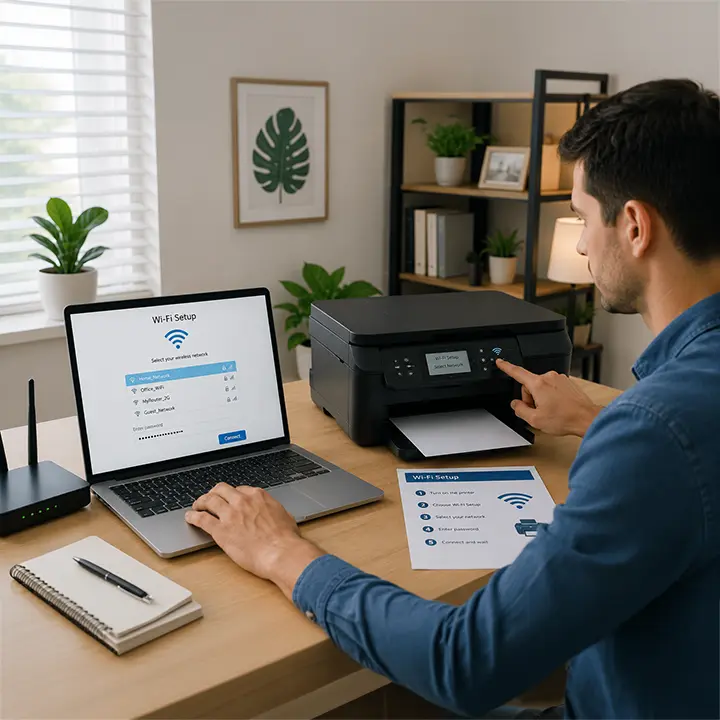
If your printer keeps vanishing from Wi-Fi, the culprit is usually signal strength, band-switching, or power-saving settings — not a faulty printer. Many printers connect only to the 2.4GHz band, so a router pushing them onto 5GHz can break the link.
What stabilizes a wireless printer:
- Confirming the printer is on the 2.4GHz network
- Improving signal between the router and printer
- Turning off aggressive sleep/power-saving modes
- Re-pairing the printer after a router or password change
A few targeted changes turn an intermittent connection into one that just works. Tap Fix Connectivity Issue to stabilize yours.
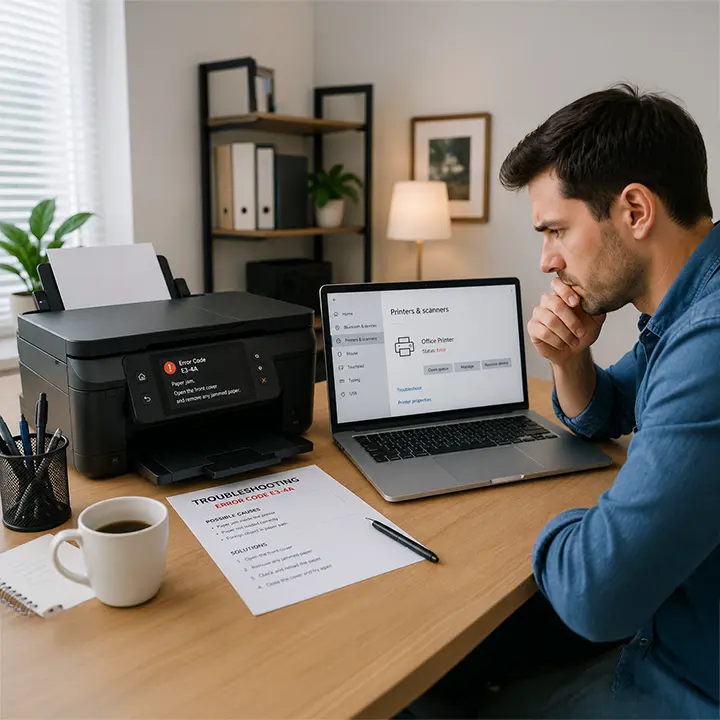
Error Codes & "Printer Not Detected" — A Real Diagnosis
Flashing lights and cryptic codes are the printer’s way of telling you something specific — a paper jam, an ink/toner issue, a sensor fault, or a communication failure. The trick is reading the signal correctly instead of guessing.
Common errors we decode:
- Numbered or lettered error codes on the printer display
- Paper-jam warnings when there’s no visible jam
- “Printer not detected” when it’s clearly powered on
- Continuous blinking lights with no print activity
We’ll translate the code, identify the real cause, and give you the exact fix. Select Diagnose Printer Error to start.
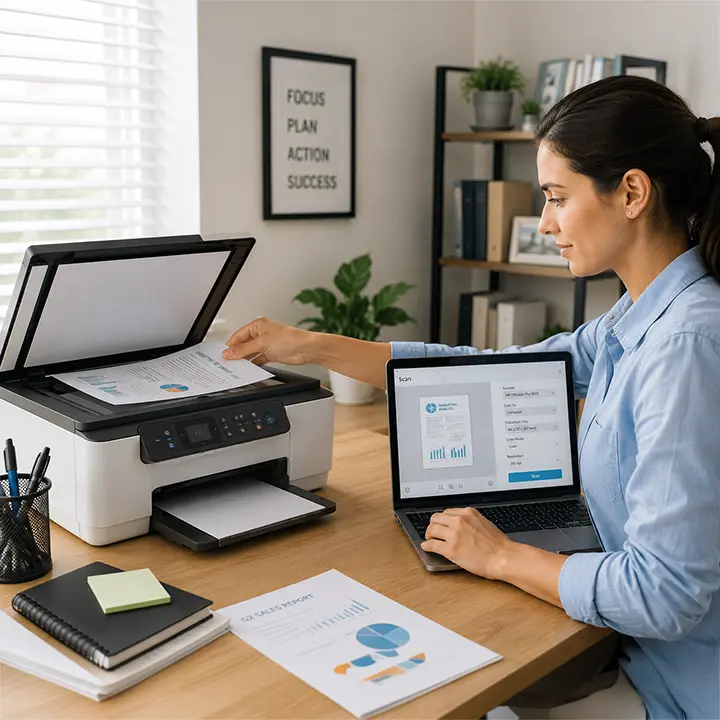
Scanner Not Working — Crisp Scans Again
When scans come out blank, streaked, or won’t start at all, the cause is usually a software or connection issue rather than hardware failure. Scanner functions often break after a driver update, a connection change, or when the all-in-one’s scan utility loses its link.
Scanner issues we resolve:
- Scanner not found by your computer
- Blank, lined, or distorted scans
- “Scan to computer” or “scan to email” not working
- Scanner stopped working after an update
Choose Fix Scanner Issue to bring scanning back.
Frequently Asked Questions
Why does my printer keep showing offline even though it's on?
Usually the connection path changed — a new IP address from your router, a stalled print spooler, or a dropped Wi-Fi link. Clearing the queue, restarting the spooler, and assigning a static IP typically fixes it for good.
How do I connect a new printer to Wi-Fi?
Put the printer in wireless setup mode, select your 2.4GHz network, enter the password, then install the matching driver or brand app on your device. Our New Printer Setup guide covers each step for your model.
Where do I get the correct printer driver?
Always use the driver that matches your exact printer model and operating system version. The wrong or generic driver causes missing features and failed prints. Our Install Printer Drivers guide helps you find and install the right one.
Why does my printer keep disconnecting from Wi-Fi?
Most often it’s band-switching (5GHz vs 2.4GHz), weak signal, or power-saving mode putting the printer to sleep. Keeping the printer on 2.4GHz and disabling sleep mode usually stabilizes the connection.
My printer prints but won't scan — why?
Scanning and printing use different software components, so a driver update or connection change can break scanning while printing still works. Reconnecting the scan utility and reinstalling scanner drivers typically restores it.
What does my printer error code mean?
Each code points to a specific issue — paper jam, ink/toner, sensor, or communication fault. Tell us the code on your display and we’ll translate it into a precise fix.
Get Your Printer Working Today
Don’t waste another hour fighting with a printer that won’t cooperate. Choose the option that matches your issue above and follow the step-by-step guidance to get back to clean, reliable printing — today.